Pages

Showing posts with label *. Show all posts

Feb 9, 2009

Emphasis On the Utility of Using the Delete Key


Really, this is so handy. Programs, oddly enough, didn't use to have this functionality. You want a program to work how you expect, and this is one feature that delivers. If you want to delete some selection, select it, and the hit the delete key. Easy. it just works. I am trying to figure out a use for the arrow keys. They are good keys! They currently languish upon the keyboard unused. Maybe you all have some good ideas for some so-called 'hot-keys' that can be incorporated into PMV. I sit right next to a bunch of the PMV programmers, and they are able and willing, we just have to give them good Ideas.

Labels


Want labels? There are many labeling schemes you can produce in PMV. So many, that, you really have to just sit down and play with it for a while to see all the possibilities. Here I will show you how to label residues by their name.

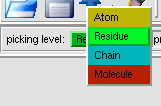
1. Make a Selection. Make sure you have the right picking level. If your picking level is set to atoms, then atoms will be labeled, but we want residues labeled so I have changed the picking level to residue.
 
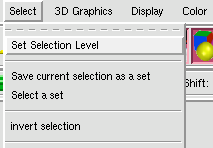
This can also be done under Selection --> Set Selection Level.

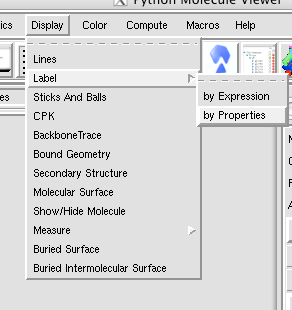
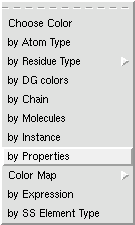
2. Go to Display --> Label --> by Property.


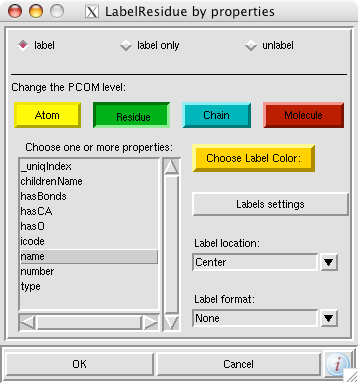
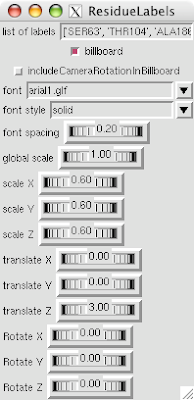
3. Make any adjustments like what color you want or the font using the Label Settings tab and hit okay. 

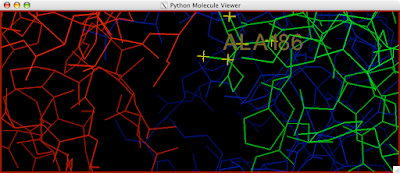
You should be golden now:

Jan 28, 2009

reset - normalize - center

Do you ever lose sight of your molecule? Can't find it? Or its just askew?
Try typing R N C, which resets its position, normalizes it and centers it.  Voila!
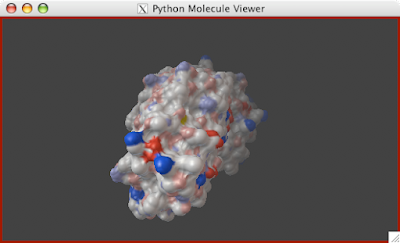
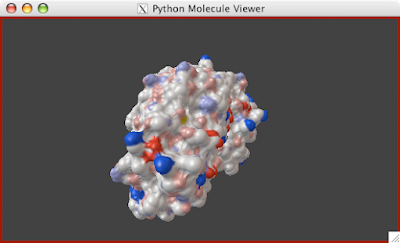
Another option consider is using the center on nodes option. This allows you to choose a center of rotation.
Dec 16, 2008

Ask me anything.

Ask me anything, and I can help you. Especially if your questions are easy. :) I have worked in the Molecular Graphics Lab at Scripps Research for nearly 5 years using PMV for most that time. If there is something you want to do, and it seems like it should be easy, it probably requires some little trick to get working and I will tell you how.

email me, Jon Huntoon, huntoon@scripps.edu

Oct 20, 2008

Toggle Depth for Instant Light.


Here is a real quick trick: if you want the lighting to instantly be bright on your object (by eliminating the depth cue), hit the "D" key and voilà.

1. Press "D" key.

Clipping Plane


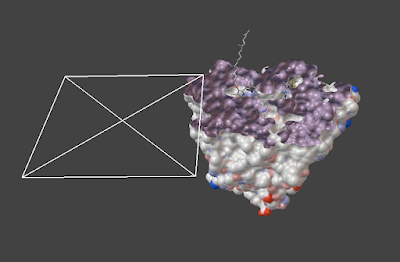
A clipping plane is an excellent way to explore the interior of a protein structure, while also giving reference to the exterior. Sometimes, you can even find complex tunnels that bore into the interior of a protein. To clip in PMV:

1. Create Molecular Surface by going to Compute--> MSMS

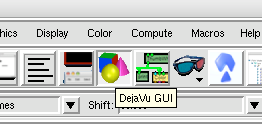
2. Click on the DejaVu button.


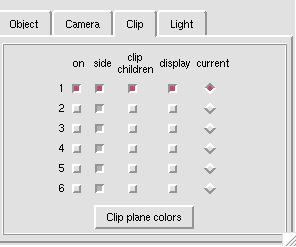
3. In DejaVu, turn on the clipping plane.


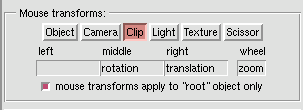
4. In DejaVu, toggle between Clip and Object under "Mouse Transforms" to manipulate the clipping plane and the object alternately. Your 3 button mouse translates, scales, and rotates the clipping plane the same as it does your object.


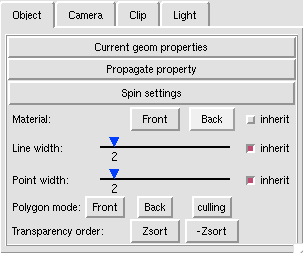
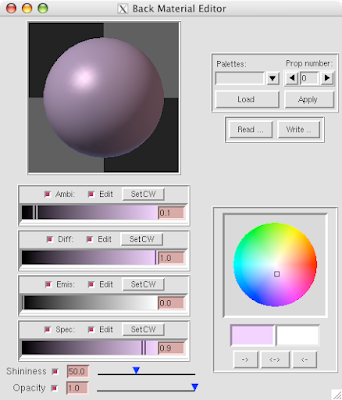
5. For additional clarity, modify the object's 'Back Material' in DejaVu under Object->'Back'


6. Additionally, you can select the individual object to be clipped, like the molecualar surface and leave in tact features such as a stick and ball representation of a heme group.


Oct 17, 2008

Selection by Distance


A very nice feature of PMV is the Seletion by 'Spherical Region' which allows you to select atoms within and particular Angstrom radius. This allows you to see the possible interactions of say, a ligand within a pocket in the protein. To do this:

1. Select the atom(s) or residue(s)


2. Go to Select--> SpericalRegion


3. Select 'Current Selection'


4. Hit 'Close' on the dialog and you should have the atoms within the specified radius (usually 5 Angstroms) selected.


5. Now you can color them or highlight them in some other way to make the proximity more apparant.


Oct 16, 2008

Background Color

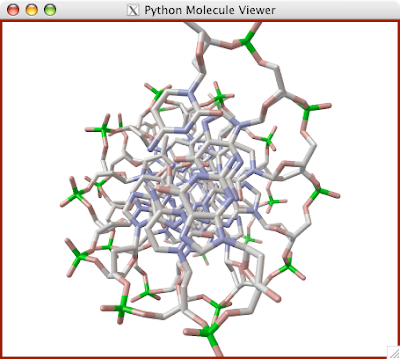
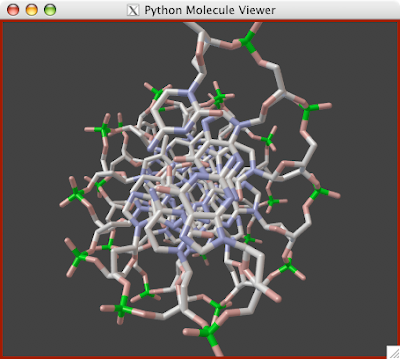
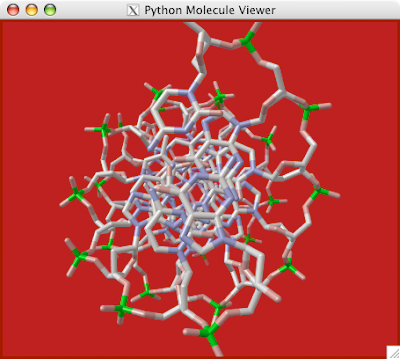
Changing the background color is simple and can help discern details, please your eyes, or prepare for a publication.

1. Go to 3D Graphics --> 'SetBackGroundColor' and then click away.

Remove Waters!


Here is how to remove waters in PMV:

1. Go to 'Select'--> click 'Select From String'


2. Type "HOH*" (or maybe "WAT" depends on the PDB file)  under 'Residue' and click add.


3. Hit the DELETE key and then click continue on the dialog. OR Goto 'Display'--> 'Lines' and click 'undisplay' an 'OK' if you just want to hide them.


Hydrogen Bonds


Hydrogen bonds interconnect the turns on a helix and the backbones of a sheet. They also stabilize DNA and RNA. Here is the rundown on how to display hydrogen bonds in a typical fashion.
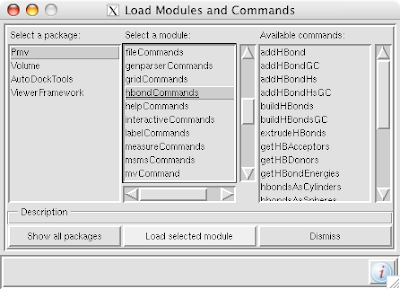
1. Go to File--> Browse Commands
2. Click PMV --> select 'hbondCommands', click 'Load Selected Module'


3. Select "backbone" under 'Atom' in 'Select From String'


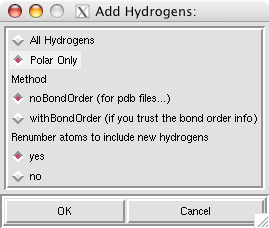
4. Go to Edit--> Hydrogens--> Add
5. Select 'Polar Only' and hit OK


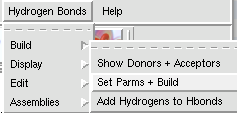
6. Go to Hydrogen Bonds--> Build--> Click "Select Parms and Build"
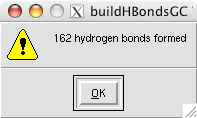
Click OK on the dialog that pops up.


7. Goto Hydrogen Bonds--> Display --> Cylinders
8. Click 'Set anchors', donors: N, acceptors C, and change the color if you wish as well.
In the Show Hydrogen Bonds as Cylinders dialog you can adjust the radii and length of the bonds as well as toggle them on and off by clicking the individual bonds in the table on top.


Oct 15, 2008

Rainbow Coloring

Rainbow Coloring!


Coloring a secondary structure from its N-terminus to its C-terminus is a useful a popular visualization style.

To accomplish this style:

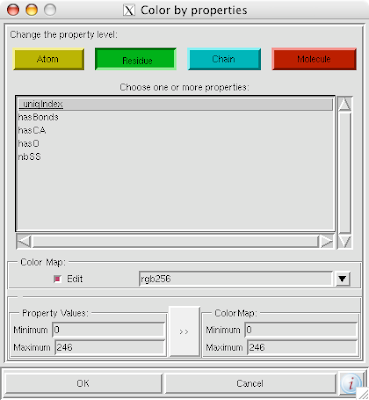
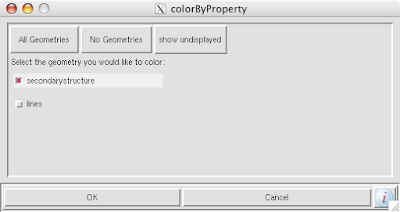
1. Go to Color-> Color by Property


2. Select what structure you want colored


3. Click 'Residue' from the top Tab and 'uniqIndex'


4. Click the '>>' tab and then okay.

 
Powered by Blogger